
To download an Instagram reel without a watermark, copy the reel’s share URL, paste it into a web-based downloader (the GWAA Story Viewer works for reels too), and tap download. You get the original MP4 file at full HD with no Instagram username overlay, no third-party logo, no compression. Public accounts only; private and deleted reels cannot be downloaded by any tool.
⚡ Key takeaways
- “Save” in Instagram only bookmarks — it doesn’t download to your device.
- Real downloaders get you a clean MP4 with no watermark.
- Three taps: copy URL → paste → save.
- Works identically on phone and computer.
- Public reels only — private and deleted ones are structurally locked.
“Save” isn’t the same as “download”
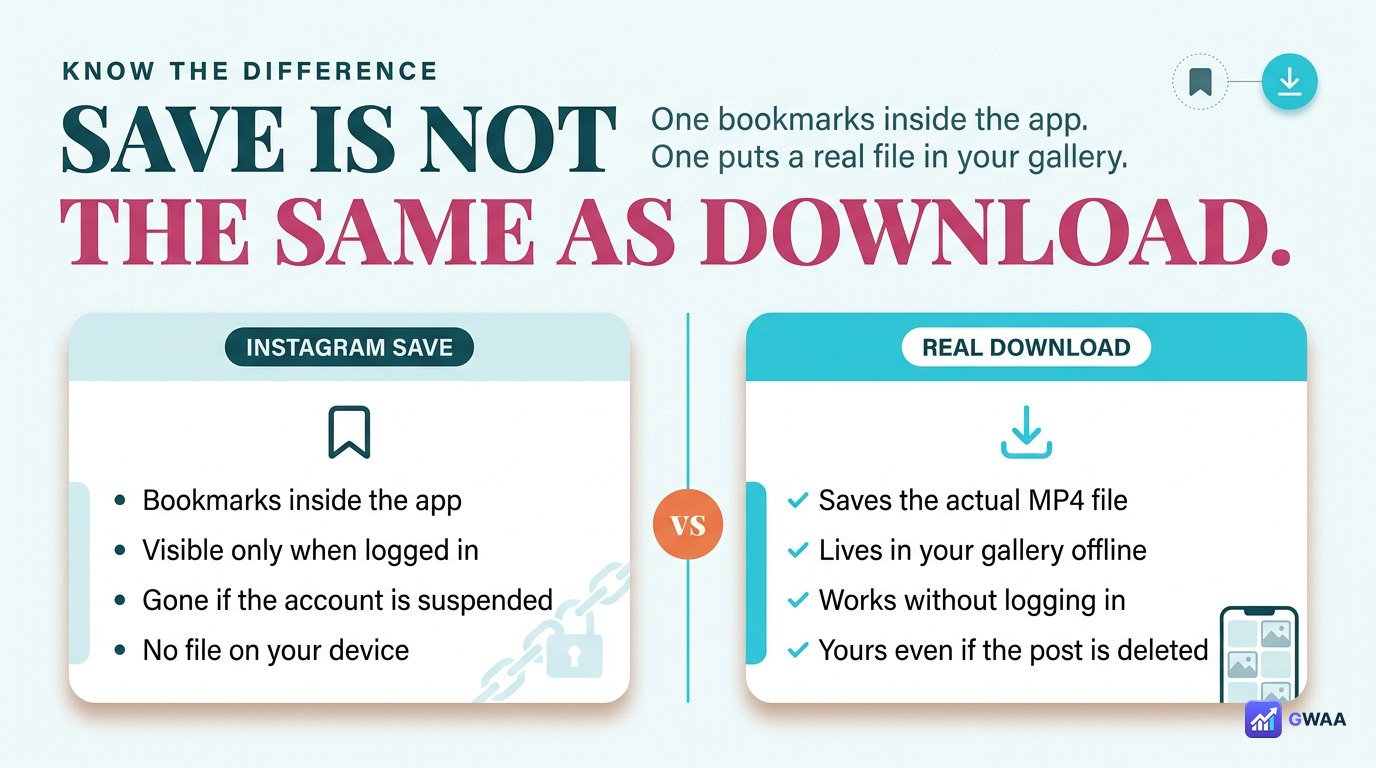
The most common confusion: Instagram’s built-in Save button (the bookmark icon) doesn’t actually download anything to your device. It just adds the reel to your private Saved collection inside Instagram — visible only when you’re logged in, gone if your account is suspended, useless if the original creator deletes the reel.
A real download puts the actual MP4 file on your phone or computer, where:
- You can watch it offline, no Instagram needed.
- You can edit it in any video editor.
- You can re-share it on other platforms (with credit).
- It survives Instagram deletions, account issues, platform changes.
The watermark problem
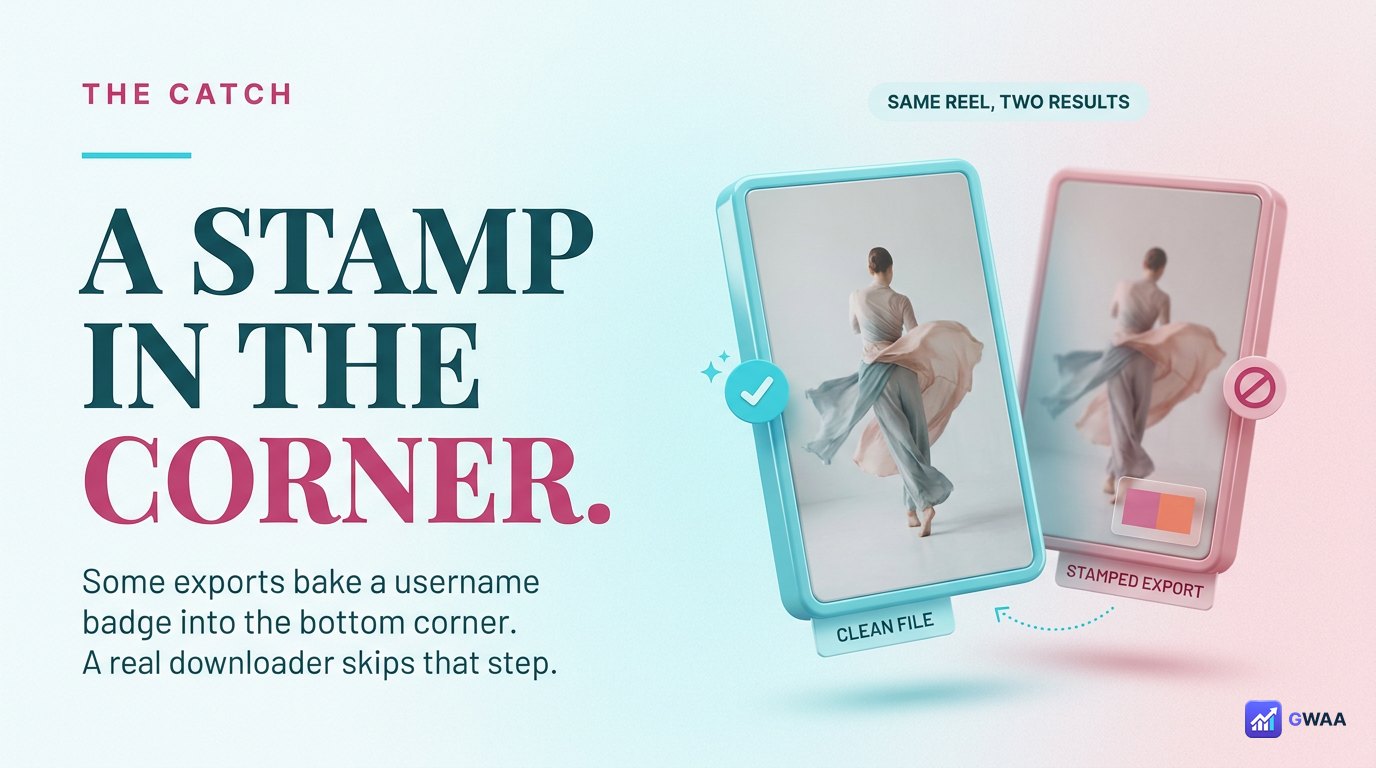
Instagram’s built-in “export reel” (and some third-party tools) add a watermark to the saved file — usually the creator’s username, the Instagram logo, or both stamped into the bottom corner. This is fine if you’re re-sharing on TikTok or X with credit. It’s a problem if:
- You want to use the reel as a clean reference in a design deck.
- You want to edit the reel into a longer video.
- You want to print stills from the reel.
- You want to archive the reel without the platform branding.
Web-based downloaders generally get you the raw MP4 before Instagram’s watermark step — clean frame, original aspect ratio, no overlay.
How to download a Reel without a watermark
The whole flow is three taps, on any device:
- Open the reel in the Instagram app. Tap the share icon (paper-plane), then Copy link.
- Open a web downloader. Paste the URL into the input field. Tap Download.
- Save. The clean MP4 lands in your gallery (phone) or Downloads folder (computer).
Tools that work: GWAA Story Viewer (free, no ads), SaveInsta (free, ad-supported), SnapInsta (free, pop-ups). All three return clean MP4 with no watermark, no overlay, original aspect ratio.
Getting the best quality
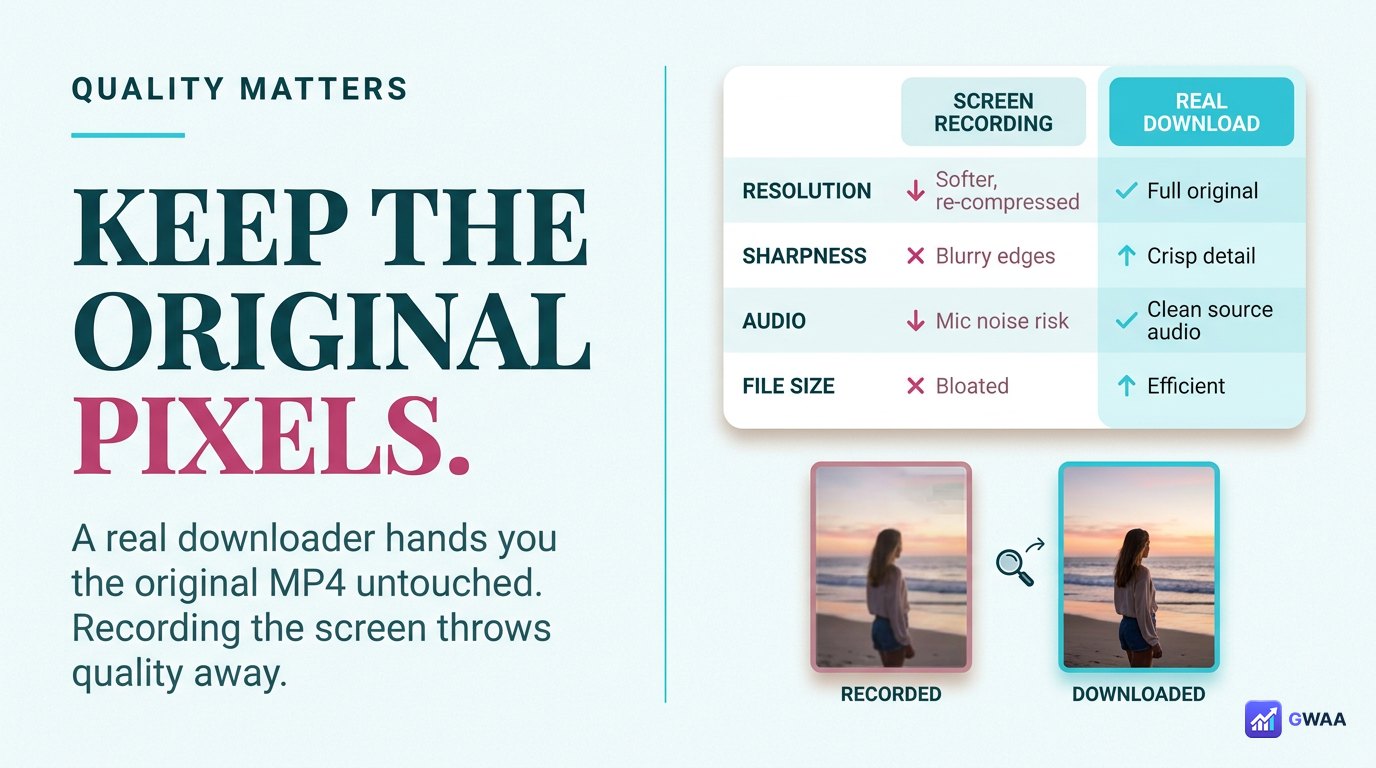
Original-file downloads beat screen recordings on every metric:
- Resolution. Downloads preserve the source (typically 1080x1920). Screen recordings are capped by your device’s screen res.
- Compression. Downloads carry exactly Instagram’s encoding pass. Screen recordings re-encode through your phone’s codec pipeline, doubling the compression.
- Frame rate. Downloads keep the original frame rate. Screen recordings may stutter or drop frames.
- No UI bleed. Downloads have only the video. Screen recordings can pick up status bars, progress overlays, your finger.
If you care about the file looking good when you re-use it later, always download. Screen-recording is a last resort.
On phone vs. computer
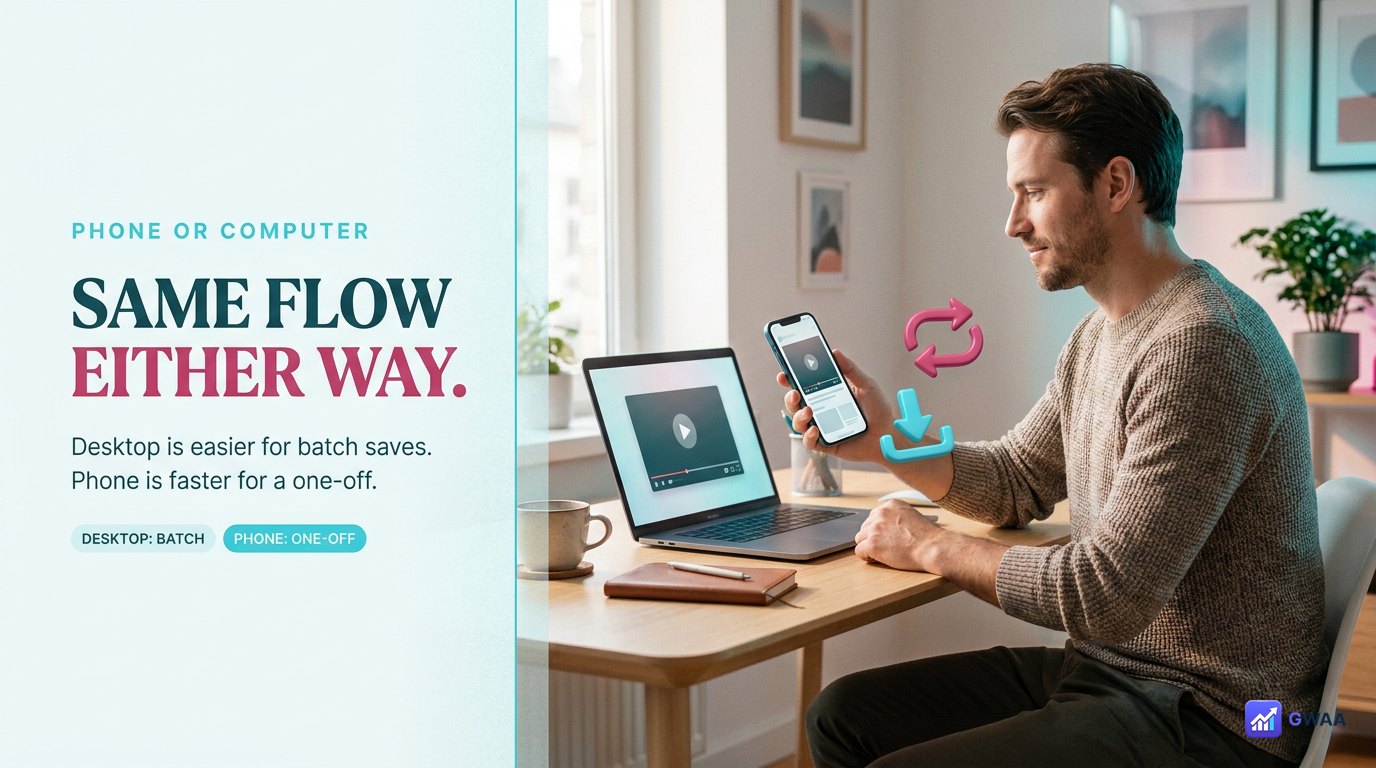
The flow is identical across devices, with two minor differences:
- Phone: Tap Download, the file lands in your Photos gallery. iOS may prompt “Save to Photos”; Android usually saves silently.
- Computer: Click Download, file lands in your browser’s Downloads folder. Easier for batch work because you can immediately move files into organised folders.
For one-off saves, phone is fastest. For research workflows or archiving entire creators’ output, computer is the better surface because you can organise files into folders as they download.
Is it legal to download Reels?
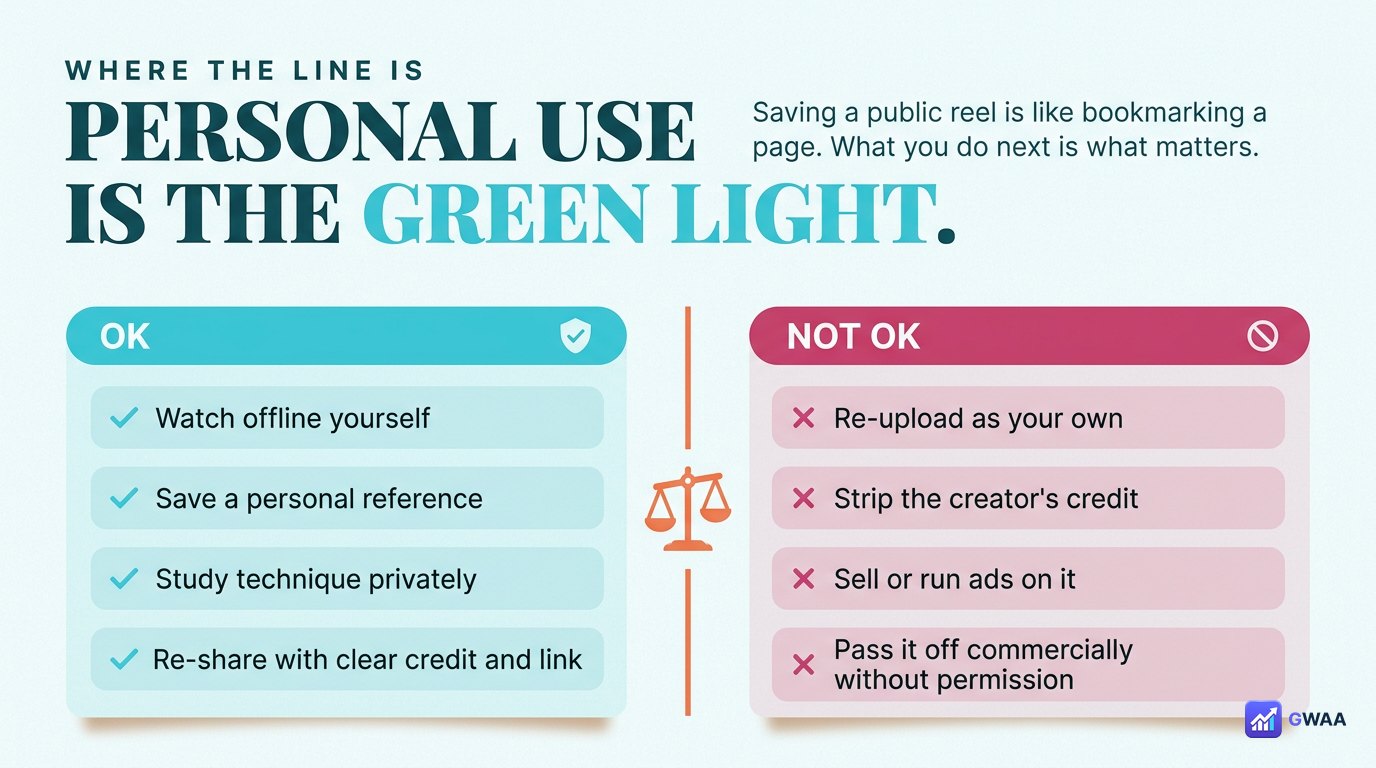
Downloading public reels for personal use is legal and the same activity as bookmarking a webpage — you’re saving a copy of content the creator chose to make public. What you do with the file is where the line is:
Legal and fine:
- Personal viewing, offline playback, archive for memory.
- Using as inspiration or reference in your own creative work.
- Re-sharing on other platforms WITH credit (link back to the creator’s handle).
- Educational use (showing students an example).
Not okay:
- Re-uploading as your own content without credit.
- Commercial use (ads, paid posts) without the creator’s permission.
- Removing creator credit then re-sharing.
- Selling the content.
What about private accounts?
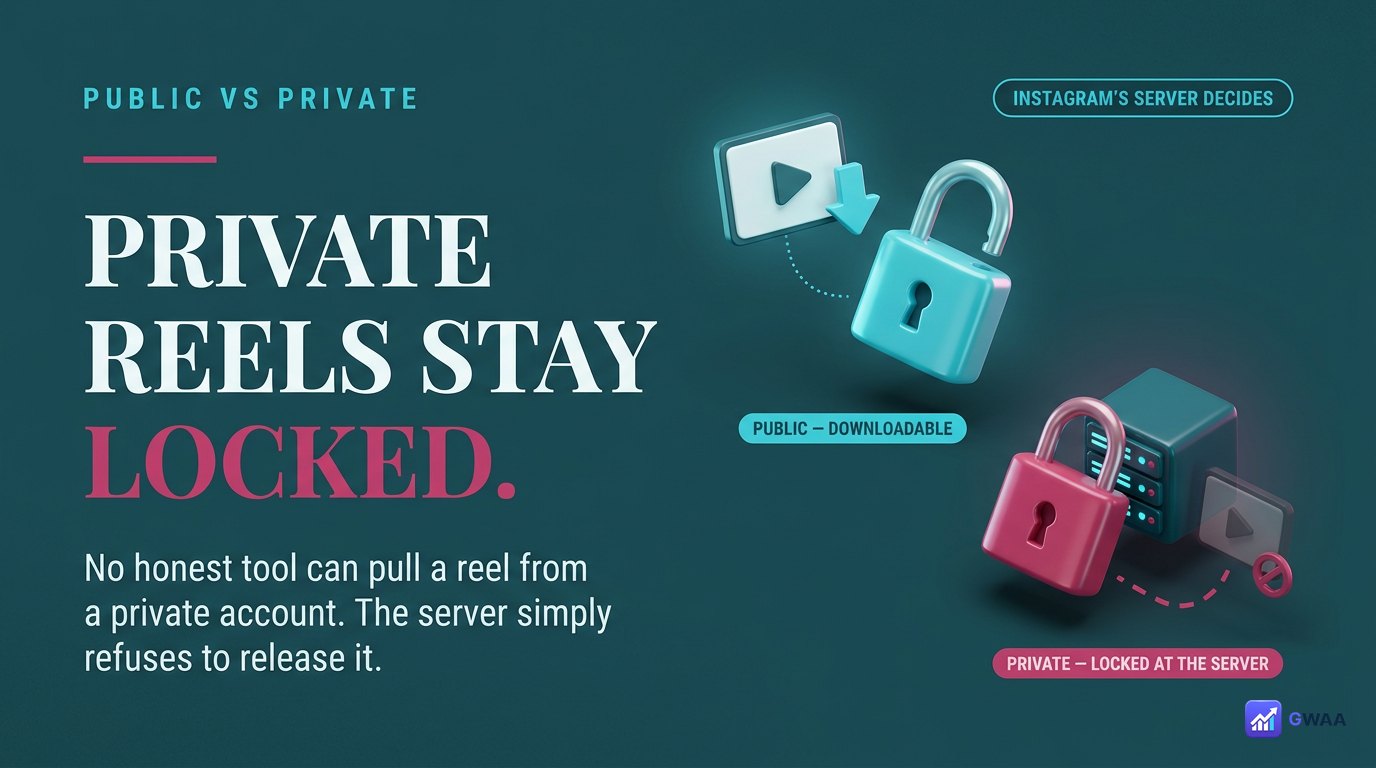
No third-party tool can download reels from a private account. Instagram’s server refuses to release that media to anyone outside the approved follower list. This isn’t a tool limit — it’s structural. If a site claims to download private reels, it’s lying. The only honest path for a private creator’s content is to send a follow request from your real account; if they accept, you can use Instagram’s own Save bookmark.
Why people download Reels in the first place
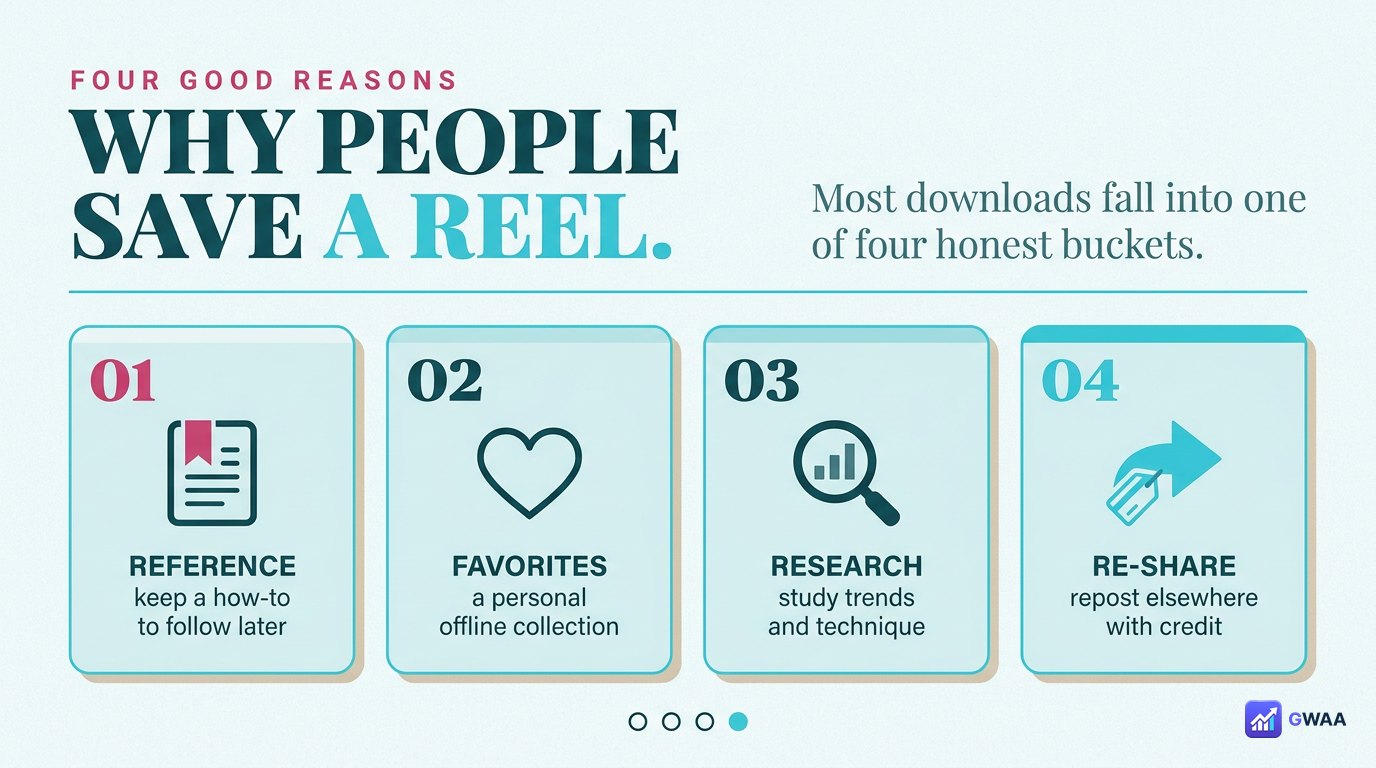
Most reel downloads fall into one of four categories:
- References. Designers, editors and creators save reels as inspiration for their own work — transitions, music sync, framing choices.
- Favourites. Reels you genuinely love and want to keep regardless of whether the original creator eventually deletes them.
- Research. Brand managers and analysts tracking competitor reel cadence over time, without resorting to screen-recording.
- Re-share with credit. Cross-posting to TikTok, X or LinkedIn with a “via @creator” reference.
Reels, stories and posts — can you download them all?
Yes. Most modern downloaders (GWAA Story Viewer included) handle all four public Instagram content types from one search box:
- Reels: MP4 at original resolution, no watermark.
- Stories: MP4 (video) or JPG (photo) within the 24-hour window.
- Posts: JPG for photos, MP4 for video posts. Carousels download as a set.
- Highlights: The owner’s permanent saved-story collections, downloadable the same way as live stories.
Common download problems (and quick fixes)
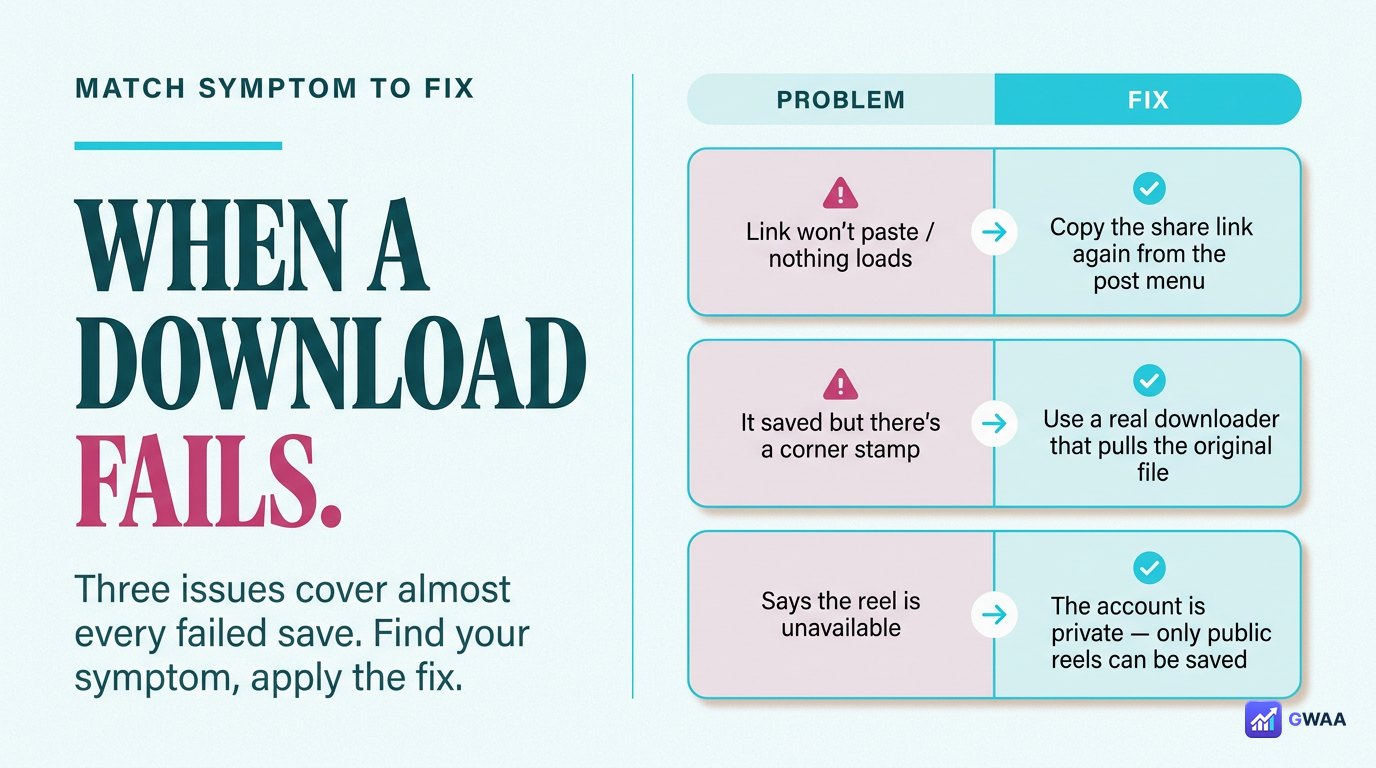
If a download fails, match the symptom to one of these three fixes:
- “Link not found”: The downloader didn’t recognise the URL. Open the reel in Instagram’s app, tap share-arrow, tap Copy link. Some users paste the in-app URL bar text instead, which doesn’t work.
- Download blocked / never starts: Try a different browser. Chrome, Safari, Firefox and Edge all work. Some browsers block downloads from third-party origins silently.
- Watermark still there: You used screen-recording or Instagram’s built-in export. Use a real web downloader instead; the file you get will be clean.
Downloading on iPhone vs. Android
The flow is identical, with one platform difference:
- iPhone: iOS may prompt “This site is downloading. Allow?” the first time. Tap Allow once and future downloads are silent.
- Android: Downloads happen silently by default, with a notification when complete. Files land in the Downloads folder, accessible via Files or Gallery.
On both platforms, downloaded reels appear in your normal photo gallery alongside camera roll content.
A note on file formats and sizes
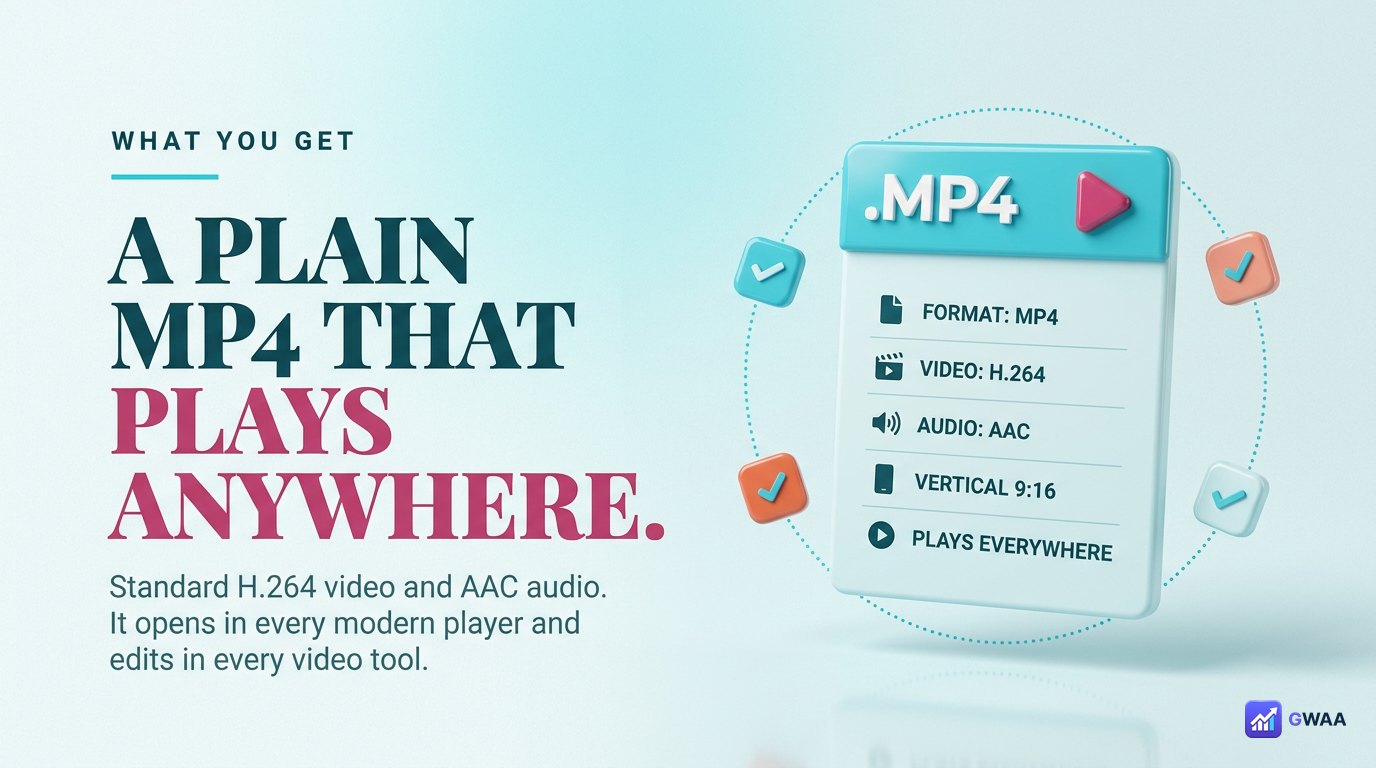
What you actually get when you download a reel:
- Format: MP4 (H.264 codec). Universal — plays in every modern video app.
- Resolution: 1080x1920 (vertical 9:16) for most reels.
- Size: Typically 3-15 MB for a 15-30 second reel.
- Aspect ratio: Preserved exactly — vertical reels stay vertical.
Some sketchy tools convert MP4 to GIF and call it “easier sharing”. Avoid this. GIF crushes colour and motion; a 5 MB MP4 becomes a 30 MB GIF that looks worse. Always keep the original MP4.
A note from the creator’s side
If you create reels yourself, the question of “is it okay that people are downloading my content?” comes up regularly. The honest answer is layered:
- Public posting implies public viewing. When you publish a reel publicly, anyone can take a screenshot, screen-record, or download it. That’s the structural reality of the public web, not a tool problem.
- Credit is the social contract. Most viewers who download with intent to re-share also credit. The minority who don’t are the same kind of people who’d screenshot without credit anyway.
- Private accounts are an option. If you specifically don’t want easy downloads of your content, the answer is to set the account private. No third-party tool can reach private reels — that line holds.
- Watermarks help, but don’t solve. Instagram’s built-in watermark when others share your reel is a soft attribution layer; it’s easily removed but it’s a useful default.
From a creator perspective, the realistic stance is: assume any public reel can and will be downloaded, focus your defence on the etiquette (credit your work prominently in the reel itself, your handle in the captions) rather than trying to make the file inaccessible. Inaccessibility is what private accounts are for.
When you’re downloading many at once
For researchers and brand teams archiving an account’s full reel output, single-reel downloads add up quickly. A few practical patterns:
- Use desktop for batches. A laptop’s downloads folder is easier to organise into year/theme folders than a phone gallery.
- Build a folder structure as you go. “2026 / Competitor / Reels” works long-term. Random filenames in Downloads do not.
- Rename meaningful files. “reel-launch-day1-2026.mp4” beats “reel_174288.mp4” in six months.
- Back up to cloud once. Years of archived reels are worth a Google Drive folder.
Tools like SaveInsta and PeekViewer support multi-select bulk downloads if you’re doing serious archive work. For occasional saves, individual download per reel is fine.
What about downloading just the audio?
One specific use case worth covering: downloading only the audio from a reel. Useful for voice-over reference, music attribution research, or extracting the sound bed for a different edit. The flow is the same as a video download but with one format choice change.
Most modern web downloaders offer an MP3 option alongside MP4. The audio quality is generally fine for reference work — not studio-grade, but indistinguishable on regular speakers. For licensed-music reels, remember that downloading the audio doesn’t grant you usage rights; if you re-use the audio in your own content, you still need to clear the licence the same as you would for any other music source.
Quick word on permissions
A reasonable habit if you re-share a downloaded reel publicly: send the creator a DM letting them know. Most reasonable creators are flattered; you build goodwill and avoid the awkward case of getting called out later for an unattributed re-share. Permission isn’t legally required for credit-with-link re-shares of public content, but it’s often what distinguishes professional creators from amateurs.
The bottom line
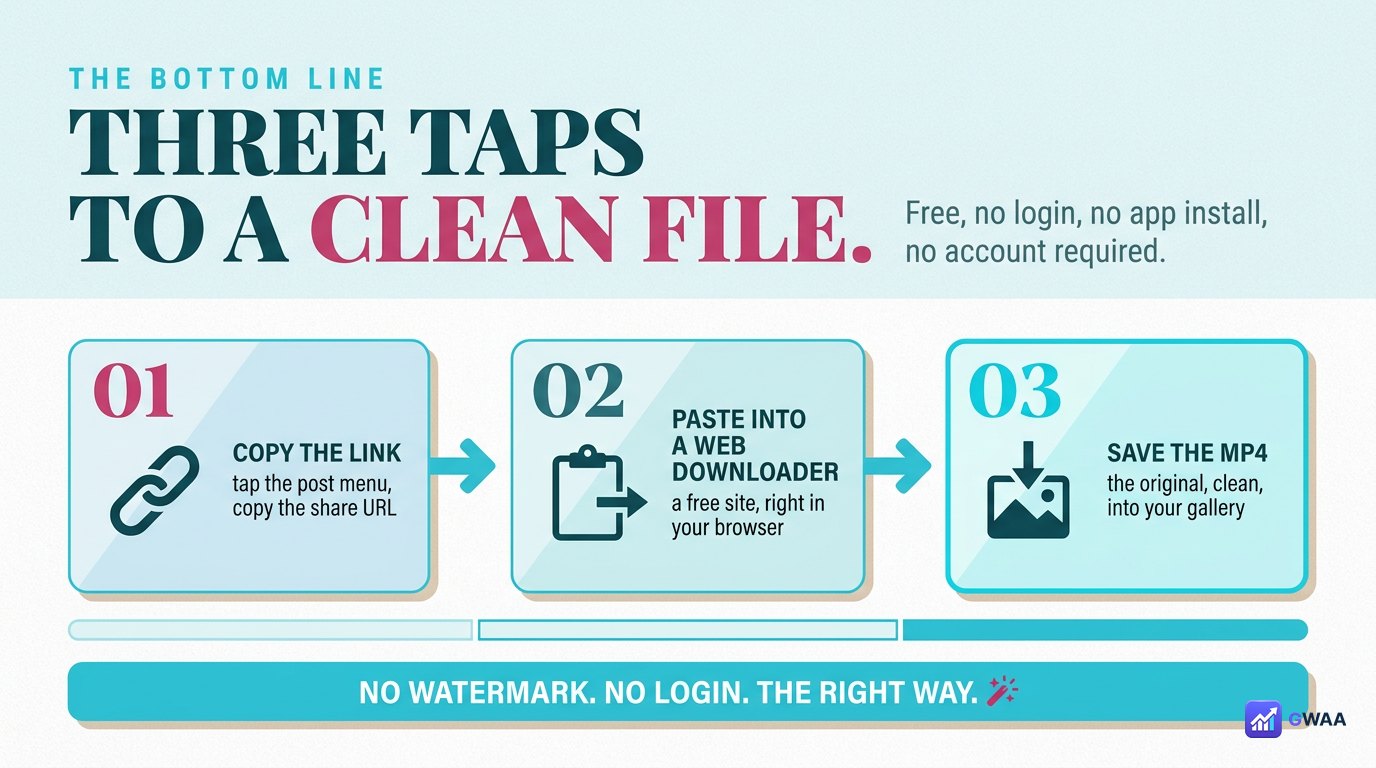
To get a clean, watermark-free download of an Instagram reel: copy the share URL, paste it into a free web downloader, save the original MP4 to your gallery. Three taps, no login, no app install, no Instagram account required. The file you get plays in every modern app, edits in every video tool, and survives whatever happens to the original on Instagram’s side.
Public reels only — private and deleted ones cannot be reached by any tool, no matter what the marketing claims. Use the downloads respectfully (credit creators when re-sharing, no commercial use without permission), and the legal line stays clean.
One final reminder: every reel you save is a small archive against Instagram’s impermanence. Creators delete posts, accounts get suspended, the platform changes formats. Your local MP4 outlasts all of that.


