
Instagram’s “Couldn’t refresh feed” error usually means the app can’t reach Instagram’s servers. Fix it in this order: (1) check your internet, (2) force-close and reopen the app, (3) check Downdetector to see if Instagram is actually down. About 90% of cases resolve at one of those three steps. The other 10% need cache clearing, app update, log out + back in, free storage, or as a last resort reinstall.
⚡ Key takeaways
- The error means the app can’t reach Instagram — not that you’re banned.
- Check internet first — most common cause by far.
- Force-close + reopen fixes about half of the remaining cases.
- If Instagram is genuinely down (check Downdetector), wait it out.
- Reinstall is a last resort — it works but takes the longest.
What the error actually means
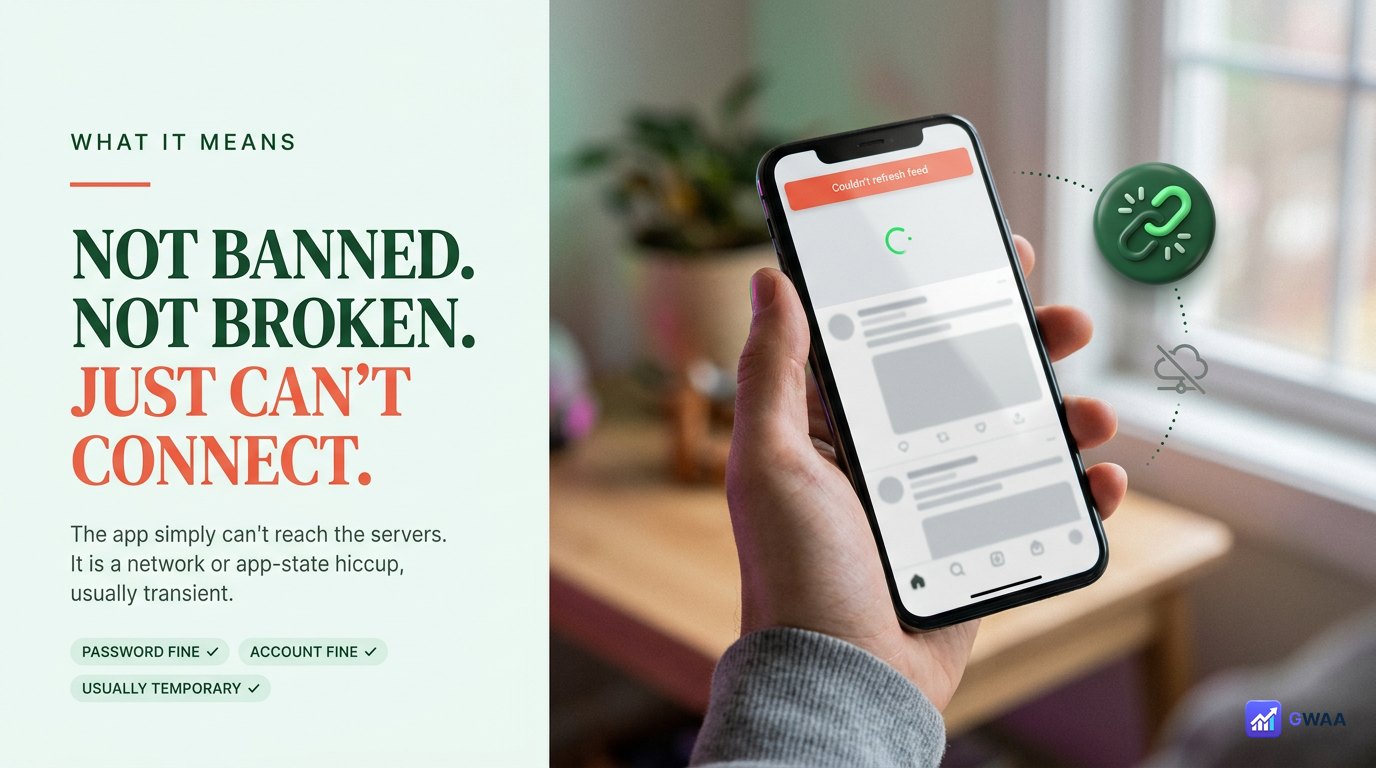
“Couldn’t refresh feed” appears when the Instagram app tries to load new content but can’t reach Instagram’s servers (or can’t parse the response). It’s a network or app-state error, not a permission or account error. You aren’t banned, your account isn’t broken, your password is fine. The most common causes:
- Your phone’s internet connection is unstable or temporarily blocked.
- The Instagram app is in a stuck state (cached request hanging).
- Instagram’s own servers are briefly down.
- The Instagram app version on your phone is out of date.
- Local cache is corrupted (rare but real).
- You’re logged into too many devices and Instagram is rate-limiting briefly.
- Your phone’s clock is wrong (TLS handshake fails).
- Storage on your phone is full and the app can’t write its cache.
1. Check your internet connection
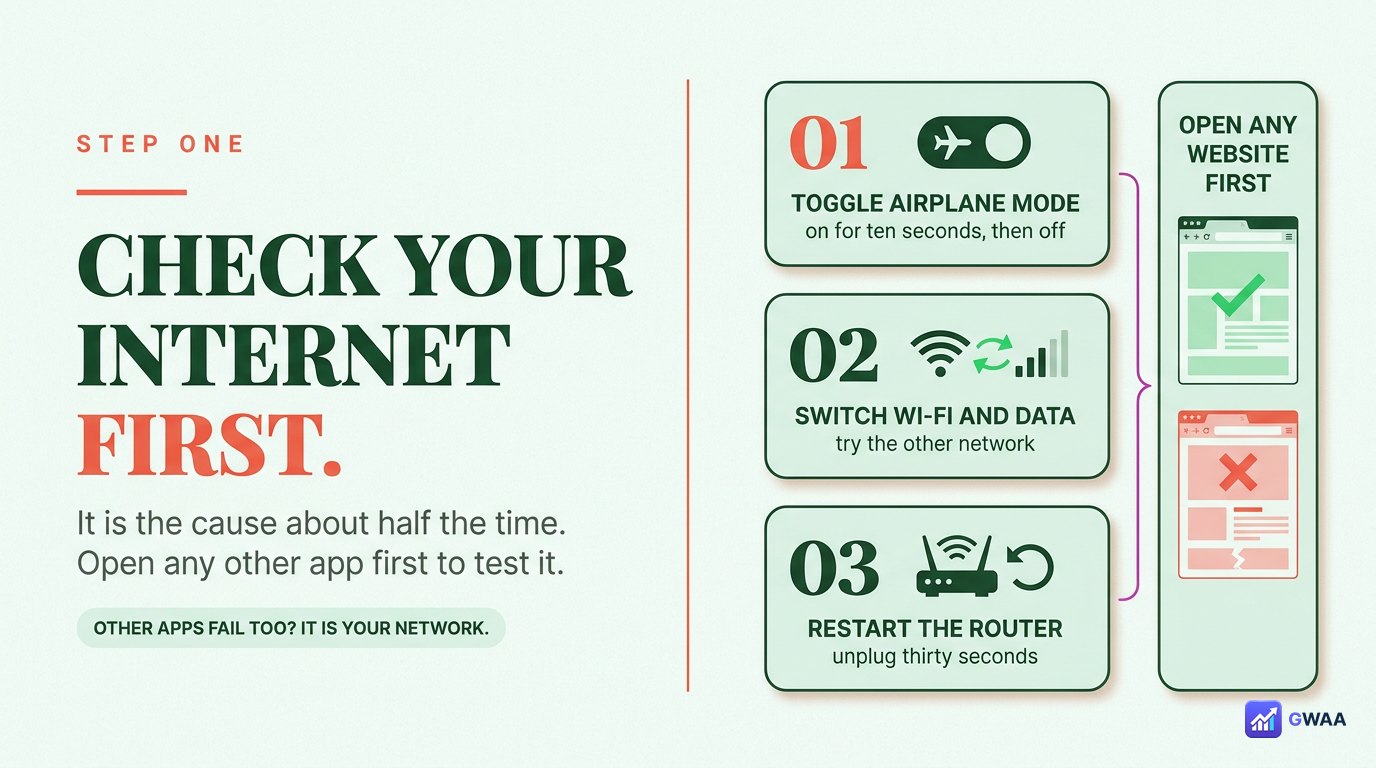
Before doing anything else, open a different app or website — Safari, Chrome, the weather app, anything. If those also fail, the issue is your network, not Instagram. Three quick checks:
- Wi-Fi: Make sure you’re actually connected, not just “in range of”. Settings → Wi-Fi → look at the signal bars.
- Switch networks: Toggle off Wi-Fi and try mobile data, or vice versa. Some networks (especially corporate Wi-Fi) silently block Instagram’s endpoints.
- Restart your router: If everything else on your phone is also failing, your router needs a power cycle.
2. Force-close and reopen the app
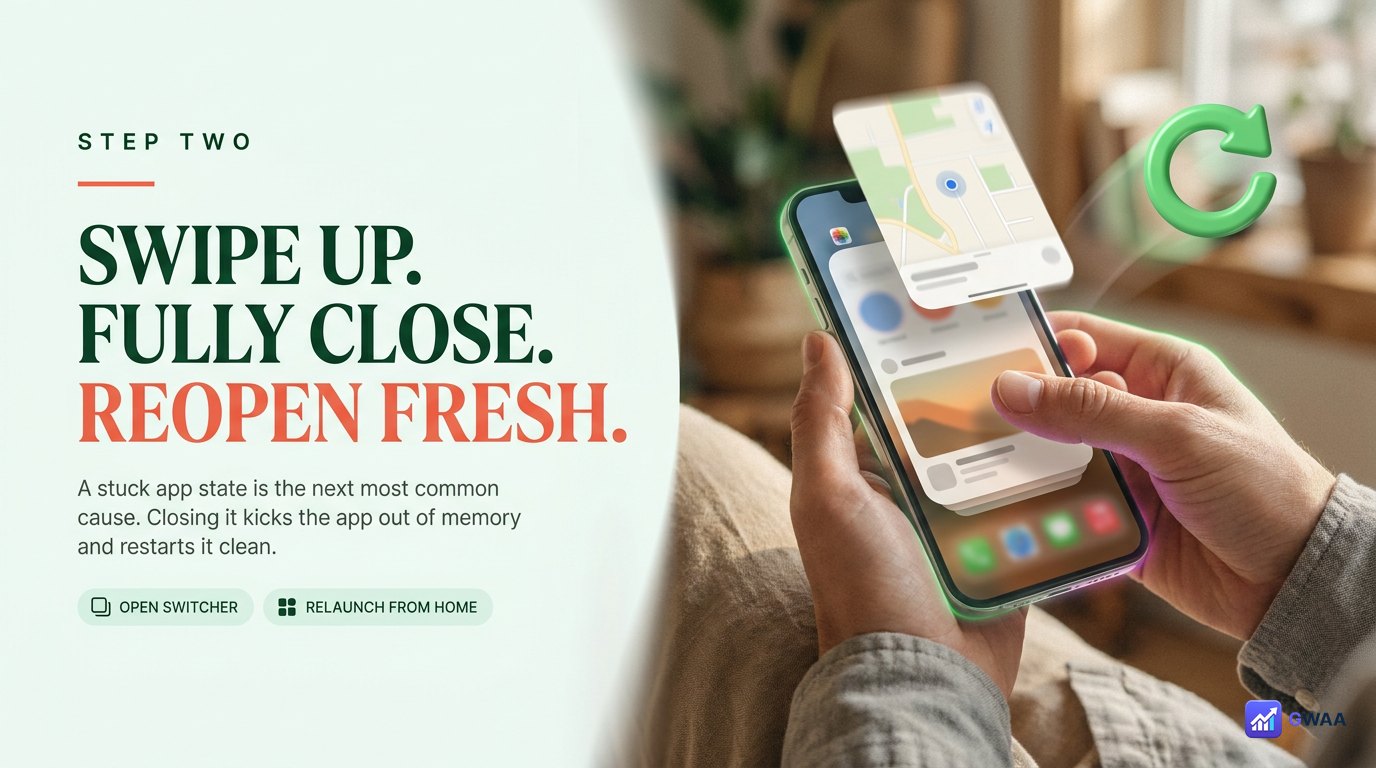
If your internet is fine, the next-most-common cause is the Instagram app being in a stuck state. Force-closing it kicks the app out of memory entirely and restarts it fresh:
- iPhone: Swipe up from the bottom of the screen (or double-press home on older models) to bring up the app switcher. Find the Instagram card, swipe it up off the screen. Tap Instagram from your home screen to reopen.
- Android: Tap the recent apps button (or swipe up and hold). Swipe the Instagram card off. Tap Instagram to reopen.
This step alone fixes a surprising number of cases. The Instagram app has cached state that occasionally gets corrupted; a fresh launch clears it.
3. Clear the Instagram cache
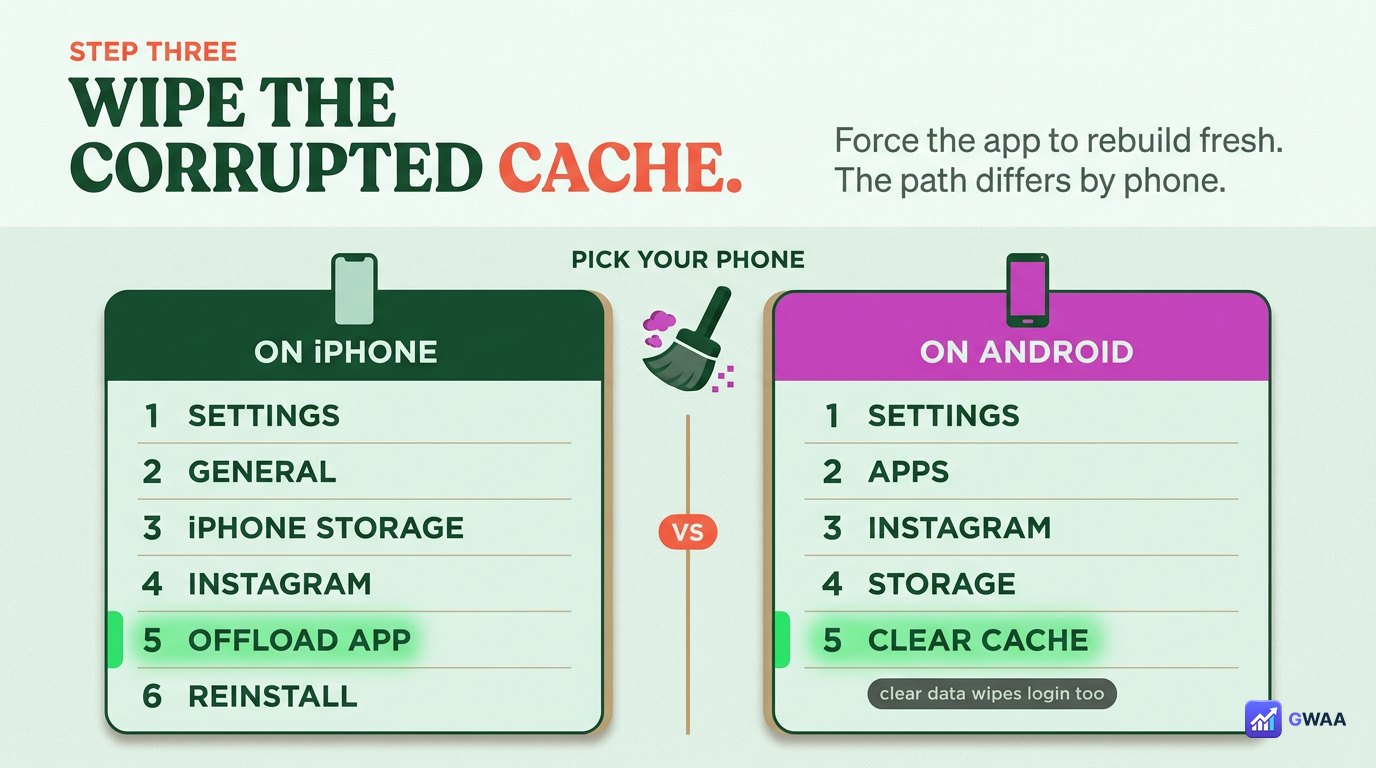
If force-closing didn’t help, the local cache might be corrupted. Clearing it forces the app to rebuild fresh:
- iPhone: No direct “clear cache” option exists. Use Settings → General → iPhone Storage → Instagram → Offload App. This removes the app but keeps your login. Then reinstall from the App Store; your data syncs back.
- Android: Settings → Apps → Instagram → Storage → Clear cache. Do NOT click “Clear data” first — that logs you out. Clear cache alone is enough.
4. Update the app
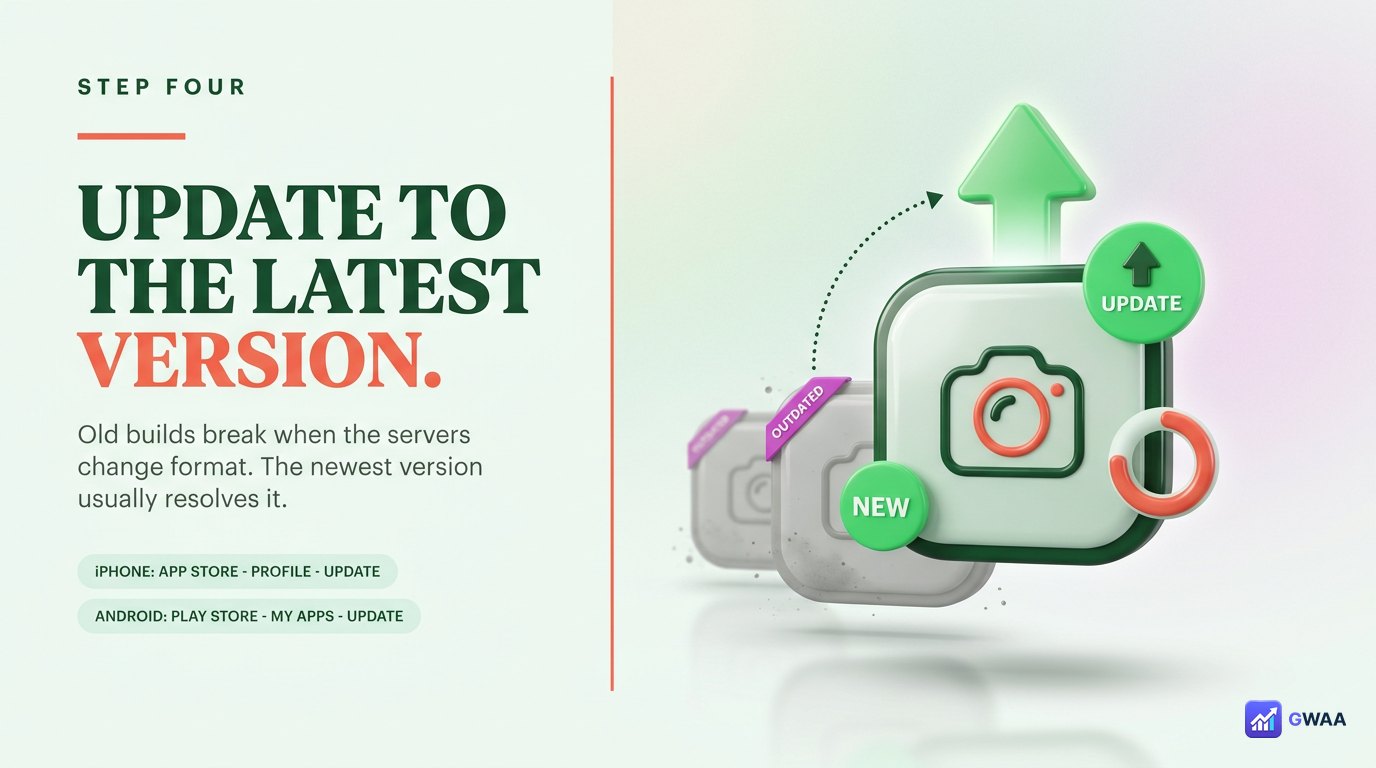
Outdated Instagram app versions sometimes break when Instagram changes their server API. Updating to the latest version usually resolves it. On iPhone: App Store → Profile icon → scroll to Instagram → Update. On Android: Play Store → Menu → My apps → Instagram → Update.
If you’ve been using an old version for months and never updated, this is likely your fix. Enable auto-update in your app store settings so this doesn’t happen again.
5. Check whether Instagram is down
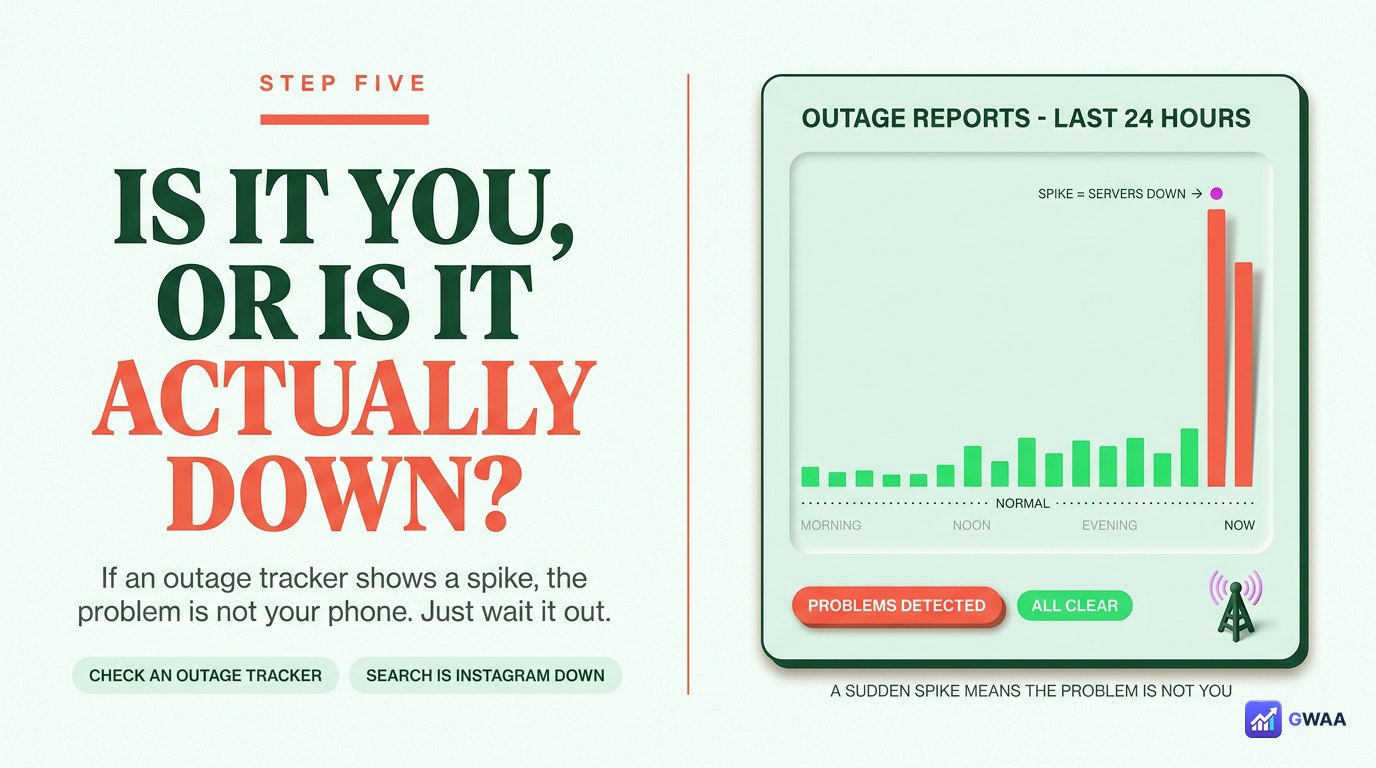
If nothing on your side works, Instagram itself might be having a problem. Quick verification:
- Downdetector.com: Search “Instagram”. A spike in user reports = real outage.
- Twitter / X: Search “Instagram down”. If the trend is active, you’re not alone.
- Instagram’s status page (rarely updated, but worth checking).
Instagram outages are usually fixed within 30 minutes to a couple of hours. The right move is to wait, not to keep troubleshooting your phone. No amount of force-closing fixes a problem that’s on Meta’s side.
6. Log out and back in
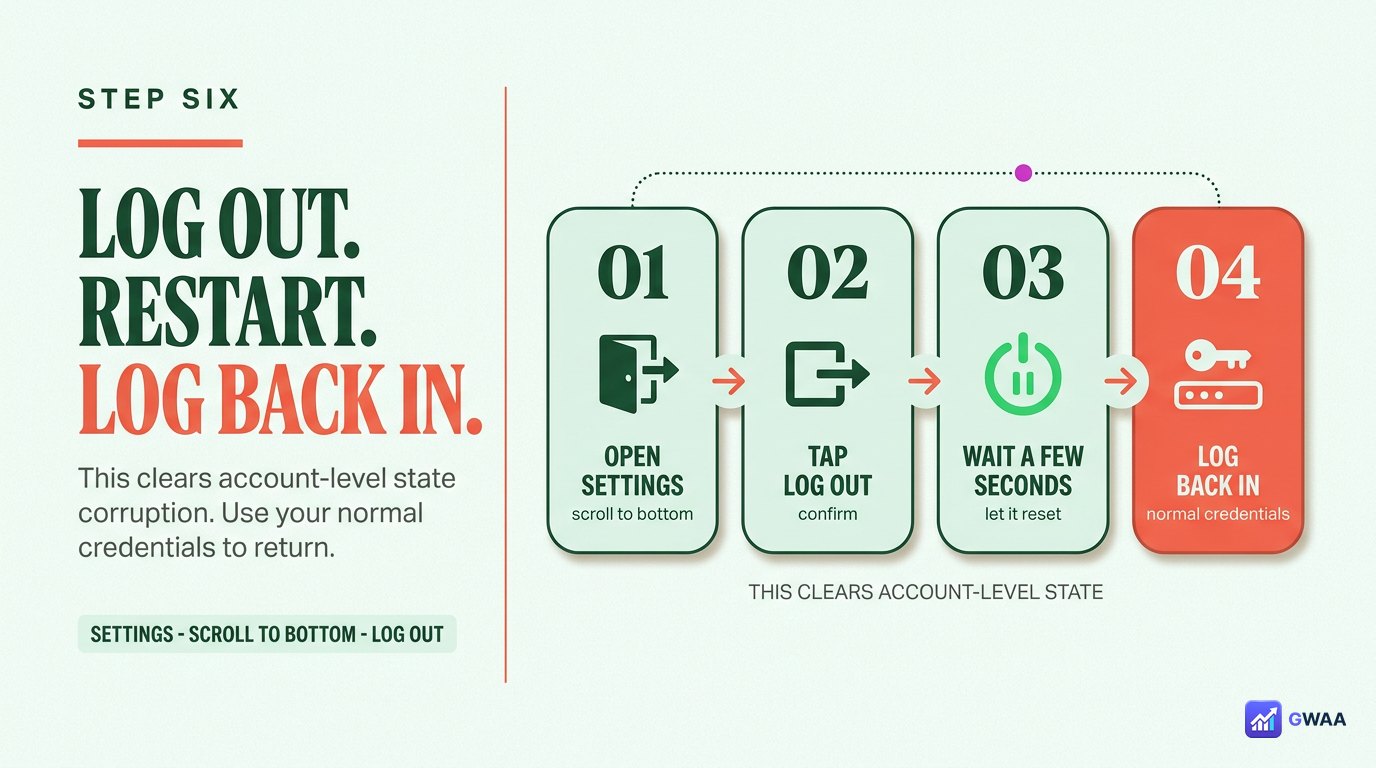
If everything above failed and Instagram is up, try logging out and back in. Settings → scroll to bottom → Log Out. Confirm. Wait a few seconds. Log back in with your normal credentials.
This rebuilds your authenticated session from scratch, which sometimes fixes account-level state that’s otherwise sticky. Keep your password handy — if you’re not sure, reset it first before logging out so you don’t lock yourself out.
7. Free up storage and check the date
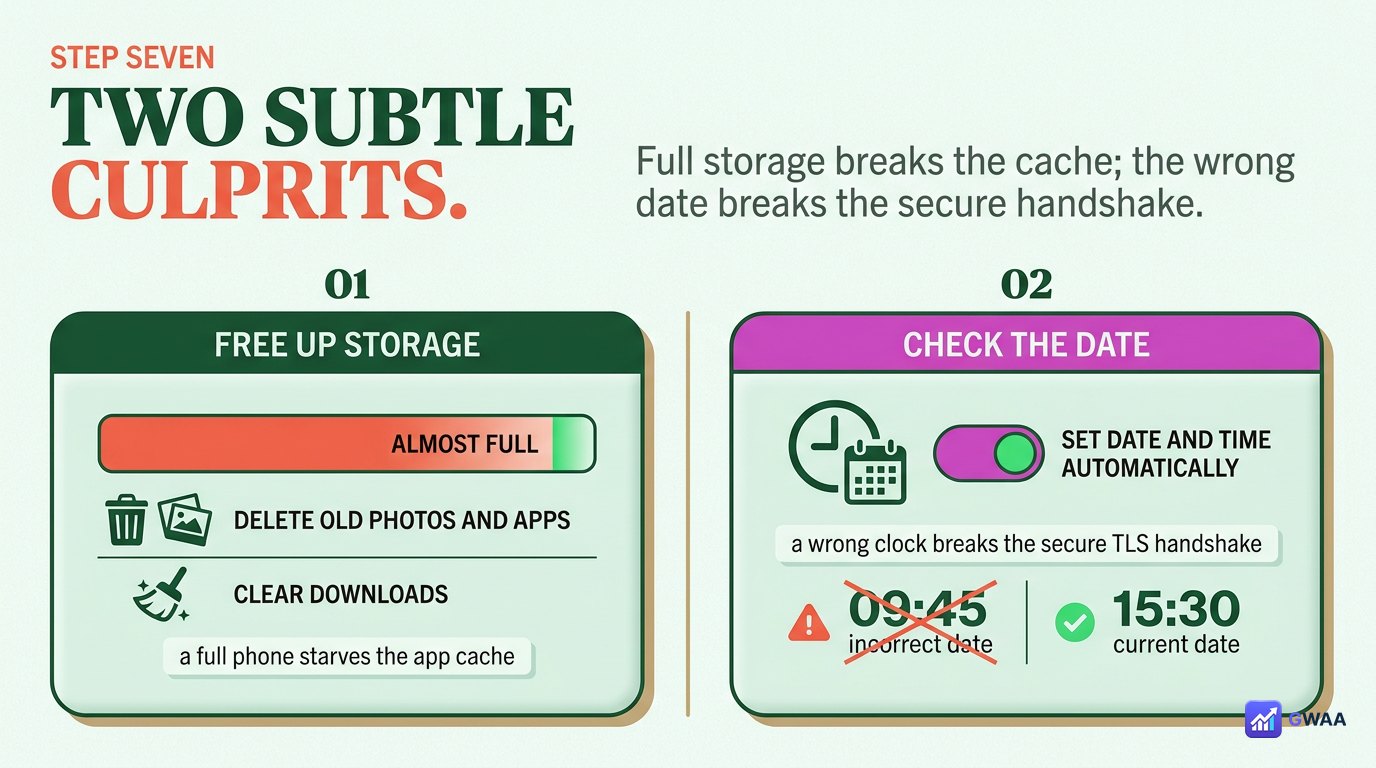
Two less-obvious fixes worth trying:
- Free up storage: If your phone is nearly full, apps can’t write their cache properly. Aim for at least 1 GB free. Delete old photos, videos, or unused apps.
- Verify date / time settings: Wrong system time causes TLS handshake failures, which look like “couldn’t refresh” errors. iPhone: Settings → General → Date & Time → toggle “Set Automatically” on. Android: Settings → System → Date & Time → toggle “Automatic date and time” on.
8. Reinstall as a last resort
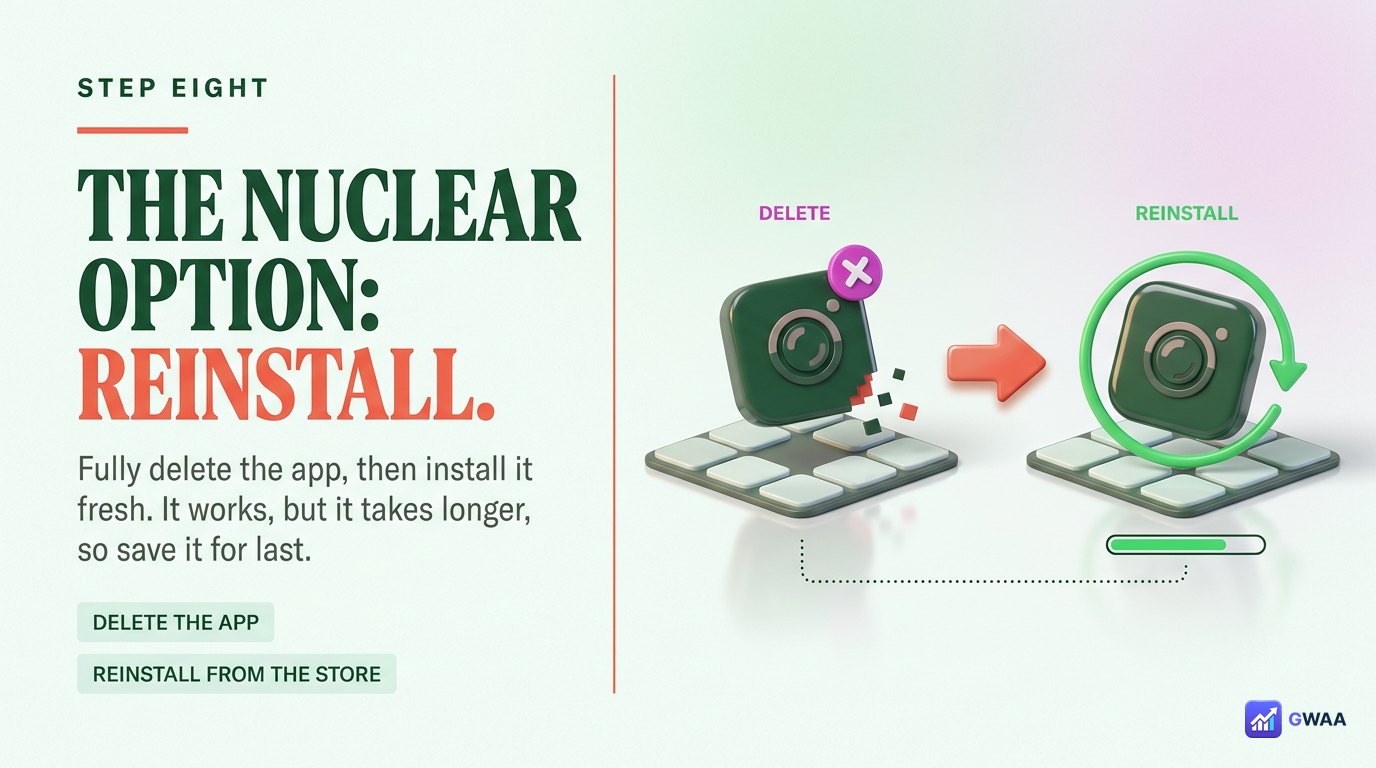
If literally everything else failed, fully delete and reinstall the Instagram app. This is the nuclear option — it works but it takes longer.
- Make sure you remember your password (or have password recovery set up).
- Long-press the Instagram icon on your home screen → Remove App → Delete App.
- Reinstall from the App Store / Play Store.
- Log in fresh. Your account, content, follows, DMs — all come back from Instagram’s servers.
Why it keeps happening — and how to prevent it
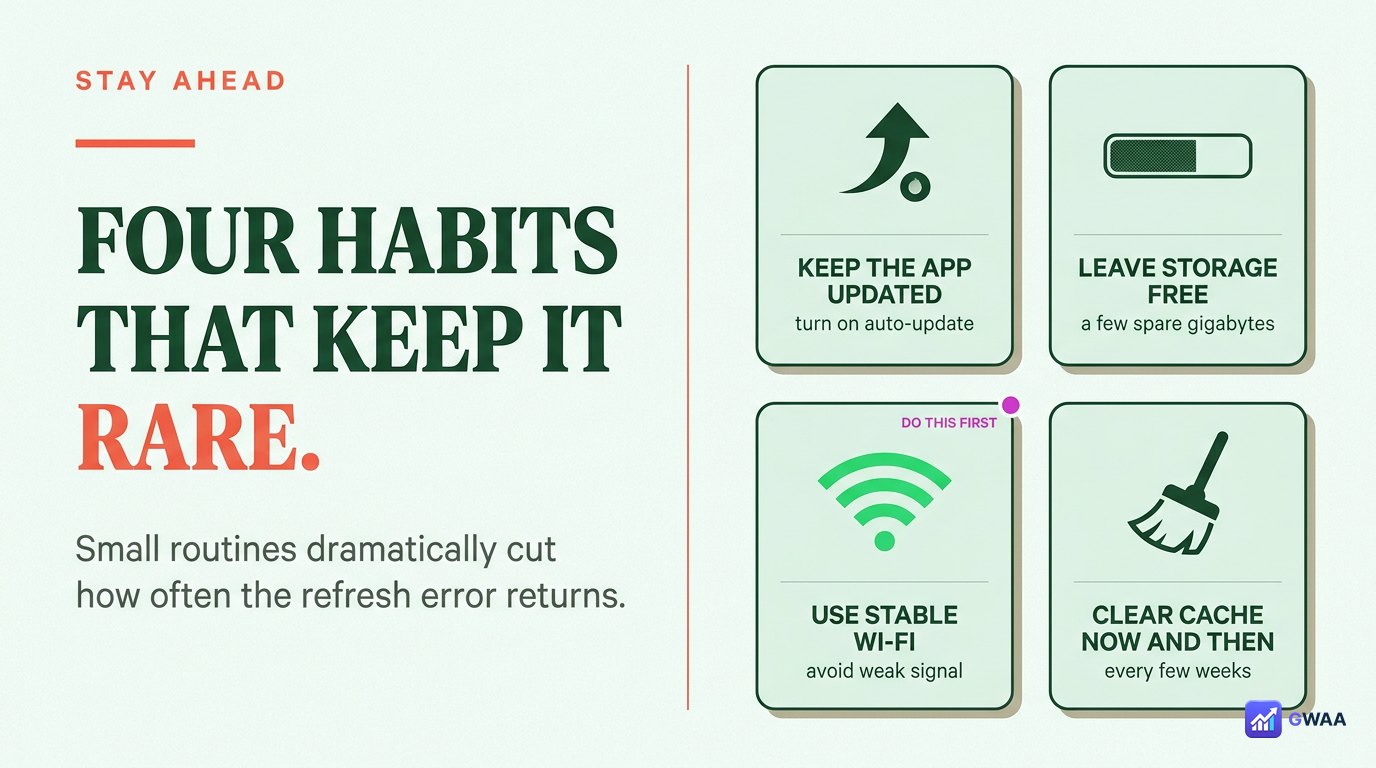
Four small habits dramatically reduce how often you see this error:
- Keep the app on auto-update. Most “couldn’t refresh” errors hit users running an outdated app version.
- Maintain at least 1 GB free storage. Phones near capacity break apps in subtle ways.
- Use stable Wi-Fi when possible. Mobile networks sometimes briefly drop without showing it on the signal indicator.
- Restart your phone weekly. Boring but effective at clearing app state that gradually corrupts.
“Couldn’t refresh feed” vs. other Instagram errors
This error is distinct from other Instagram errors that look similar but have different root causes:
- “Couldn’t refresh feed” — network/app state. The fixes above apply.
- “5xx server error” — Instagram’s own server failure. You can’t fix it; wait.
- “Your account has been disabled” — moderation action. Wholly different problem (appeal via the help centre).
- “We restrict certain activity” — rate-limiting (you followed/unfollowed too fast). Wait a few hours.
- “Try again later” — ambiguous; usually network. Try the eight steps above.
If your feed breaks but stories and DMs still work
Sometimes one part of Instagram fails while the rest works. If your feed shows “couldn’t refresh” but you can still see stories at the top and DMs work, the issue is specifically with the feed endpoint, not your account or network. This usually means:
- Instagram is doing a partial deployment that broke the feed-loading code temporarily.
- The feed-specific cache on your device got corrupted.
- An ad-blocker or VPN is interfering with the feed CDN but not the messaging server.
Fix: try force-closing, then disabling any VPN or ad-blocker for a single test load. If those don’t help, wait an hour and try again — Instagram’s partial deployments usually resolve within that window.
Could it be a temporary account limit?
Yes, occasionally. Instagram silently rate-limits accounts that have done something unusual recently — mass-following, mass-unfollowing, posting too frequently, sending too many DMs. When this happens, the feed sometimes fails with “couldn’t refresh” alongside other limitations. Signals you’re rate-limited rather than having a network problem:
- Other Instagram features (DMs, search) also feel sluggish or fail.
- You recently followed/unfollowed many accounts.
- You see other “activity restricted” messages occasionally.
The only fix is to wait it out — usually 24-48 hours of normal behaviour resets the limit. Don’t mass-follow more accounts to test it; that extends the limit.
When the best fix is simply to wait
If you’ve done two or three of the steps above and nothing works, and Downdetector confirms Instagram is having a real outage, the best fix is to stop troubleshooting. Wait 30-60 minutes. Try again. Most Instagram outages are resolved within that window, and the app will work again with no action from you.
Region and ISP issues
One overlooked cause: some networks block or throttle Instagram’s CDN endpoints. If you only see the error on specific networks (workplace Wi-Fi, university Wi-Fi, certain hotel networks) but Instagram works fine on mobile data, the network is the problem:
- Corporate firewalls sometimes block social-media domains during work hours.
- School Wi-Fi often blocks Instagram entirely.
- Some hotel networks rate-limit large media downloads, which makes Instagram’s image-heavy feed fail.
- Certain ISPs in specific regions throttle Meta CDN traffic during peak hours.
Workaround: switch to mobile data, use a VPN, or simply wait until you’re on a network that doesn’t throttle the CDN. The error itself is identical to a regular network failure, which is why this case is often mistaken for a phone or app problem when it’s actually the network.
If you use a VPN
VPNs occasionally cause “couldn’t refresh feed”. Two common scenarios:
- VPN server in a region Instagram throttles. Switch the VPN endpoint to a different country — usually fixes it.
- Free or shared VPN with rate-limited IP. Free VPNs often use shared IP addresses that Instagram flags for unusual behaviour. Use a paid VPN or just disable the VPN entirely for the test.
Test by temporarily turning the VPN off and refreshing. If the feed loads cleanly without VPN, the VPN is your culprit. If it still fails without VPN, the VPN was a coincidence. The general rule with VPNs and Instagram: if you must use a VPN, pick a reputable paid provider with rotating IPs in a country Instagram doesn’t already throttle.
The bottom line
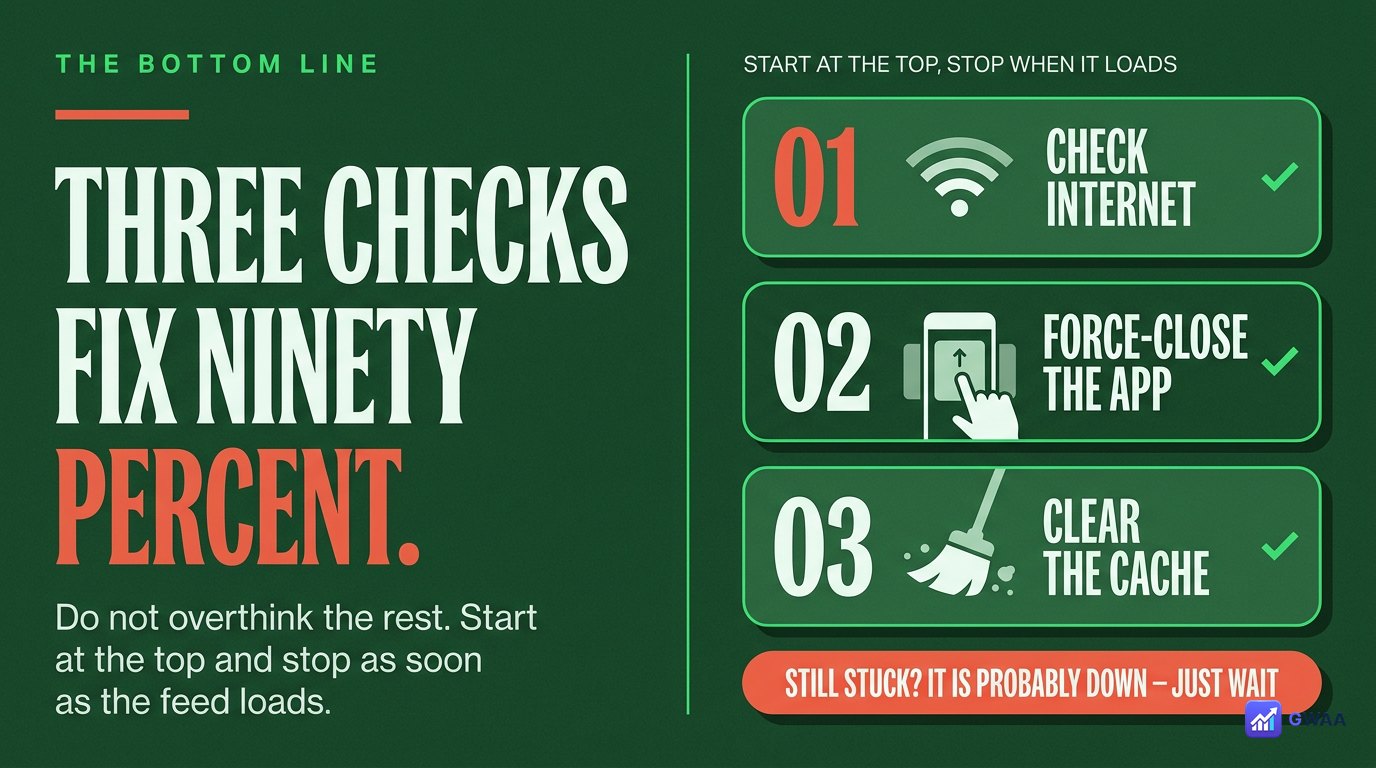
The eight fixes above cover essentially every case of “couldn’t refresh feed”. In practice, you only ever need the first three for about 90% of cases:
- Check your internet. Half of all cases.
- Force-close + reopen. Most of the remaining half.
- Wait it out if Downdetector says Instagram is down.
The other five steps (cache, update, log out, storage, reinstall) handle the long tail. Walk them in order if needed, but don’t skip ahead — the cheap fixes work most of the time, and reinstall is genuinely a last resort because it takes the longest.
If after all 8 steps your feed still won’t refresh, take the failure as a signal to wait rather than escalate. Most stubborn cases self-resolve within 24 hours when Instagram pushes a quiet backend fix or your local cache clears naturally. Resist the urge to reinstall a second time or contact support — both rarely help and can extend the recovery window.